Guide for schools
Staff report faults with a QR code. You schedule them. The groundskeeper fixes them.
A simple way for a school caretaker to run maintenance in RunTight: no logins for staff, a short list for you, and every job saved on the room’s record. All of it works on the Free plan.
Not a school? The general guide covers the same steps for any shop or building.
The whole workflow in about a minute and a quarter, recorded in the real app, with captions and no sound. The steps below walk through the same thing. Riverside School is a sample workspace with made-up data.
Set up once
About fifteen minutes, done on a computer.
Turn on fault reporting
Settings › Organization, under “Public Request Portal”: tick Enable public request portal, then click Save Changes (under Organization Details at the top, or at the bottom of the page).
Do this before you print labels, so the QR codes open the report form.
Add your rooms
Under Equipment, click Add Equipment, type the room’s name and click Add Equipment. A room is just an item, like “Room 4” or “Staff toilets”.
RunTight then offers a monthly check for the room. Click Equipment in the menu to skip it; recurring checks are covered below.
Print the QR labels
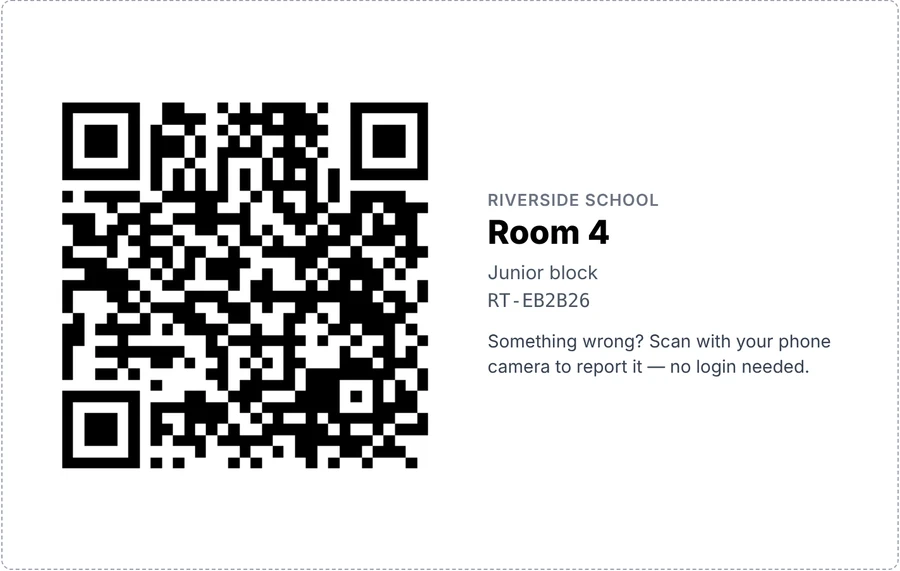
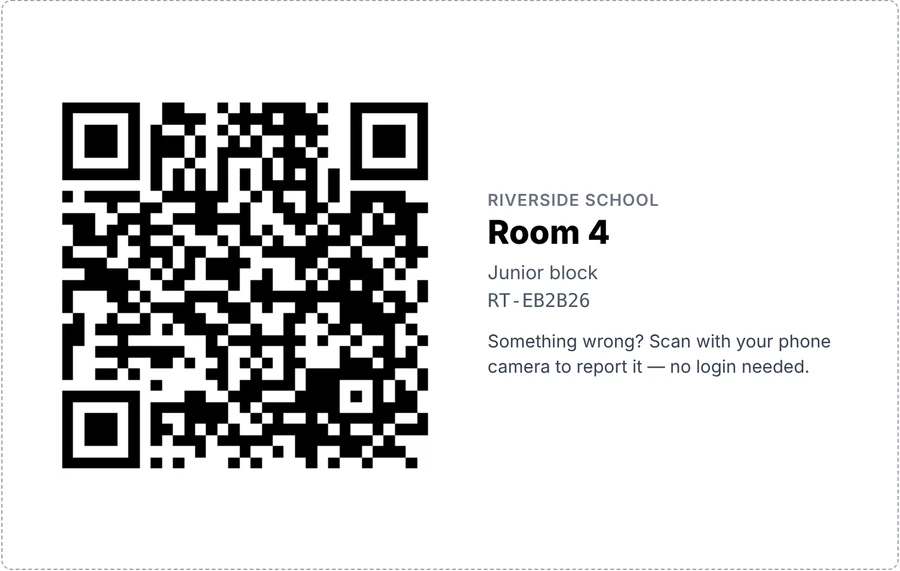
Equipment › Print Labels. On A4 paper, pick Large cards (the sticker-sheet option is a US size). It prints a label for everything in the list, so search the list first to print only your rooms. Cut them out and put one up in each room.
Invite your groundskeeper
Settings › Team: click Invite User, enter their name and email, choose Technician as the role, and click Send Invite. They finish setting up on their phone.
Every day
Scan, report, schedule, fix, record.
Staff scan the label and report the fault
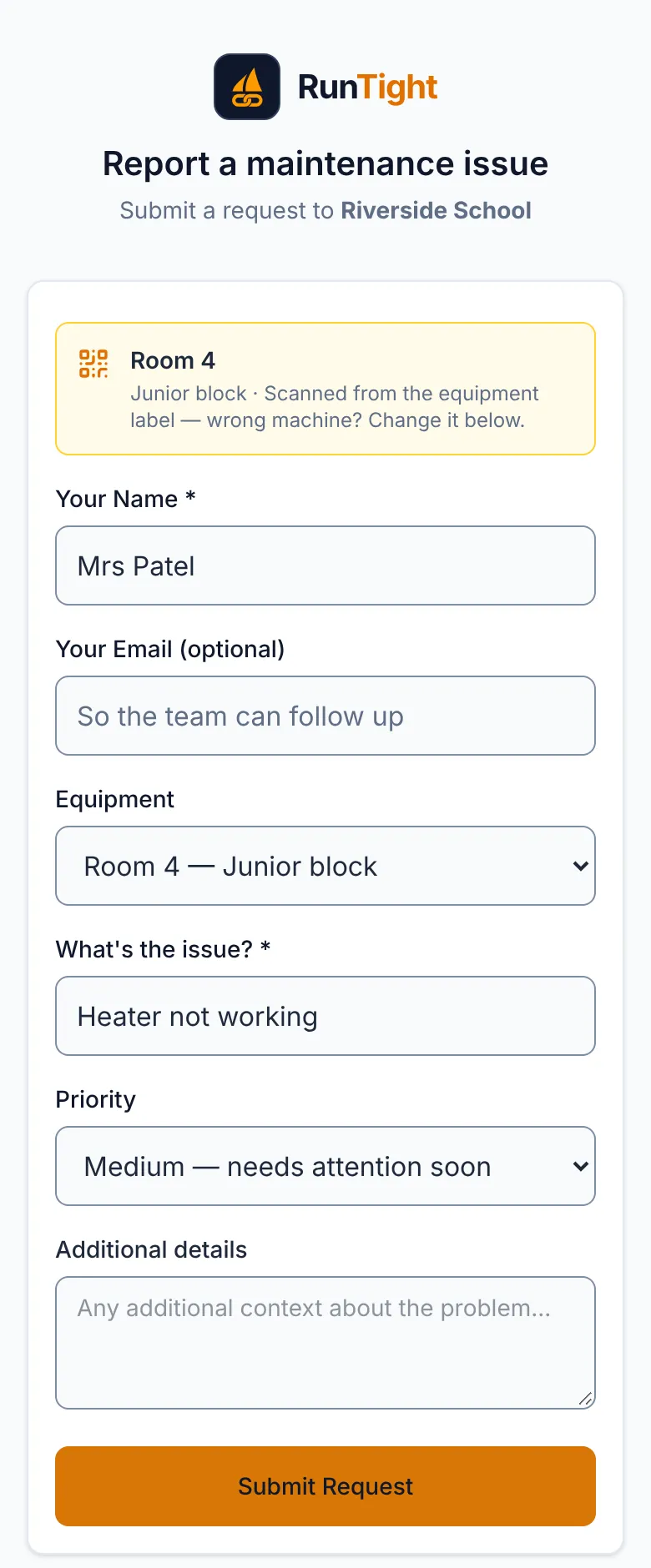
Any phone camera opens the form with the room already filled in. They type their name and what’s wrong, then send. No account and no app.
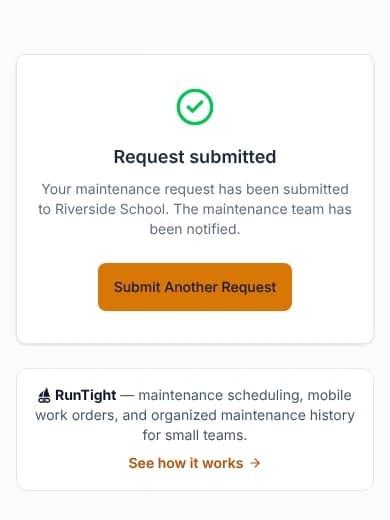
You get an email, and the report shows up as an open work order.
You set the priority, who does it, and the day
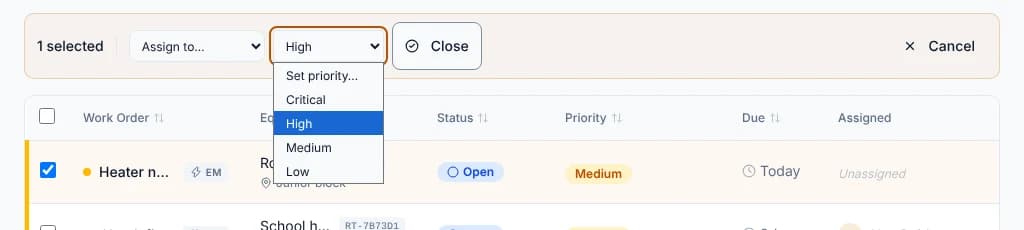
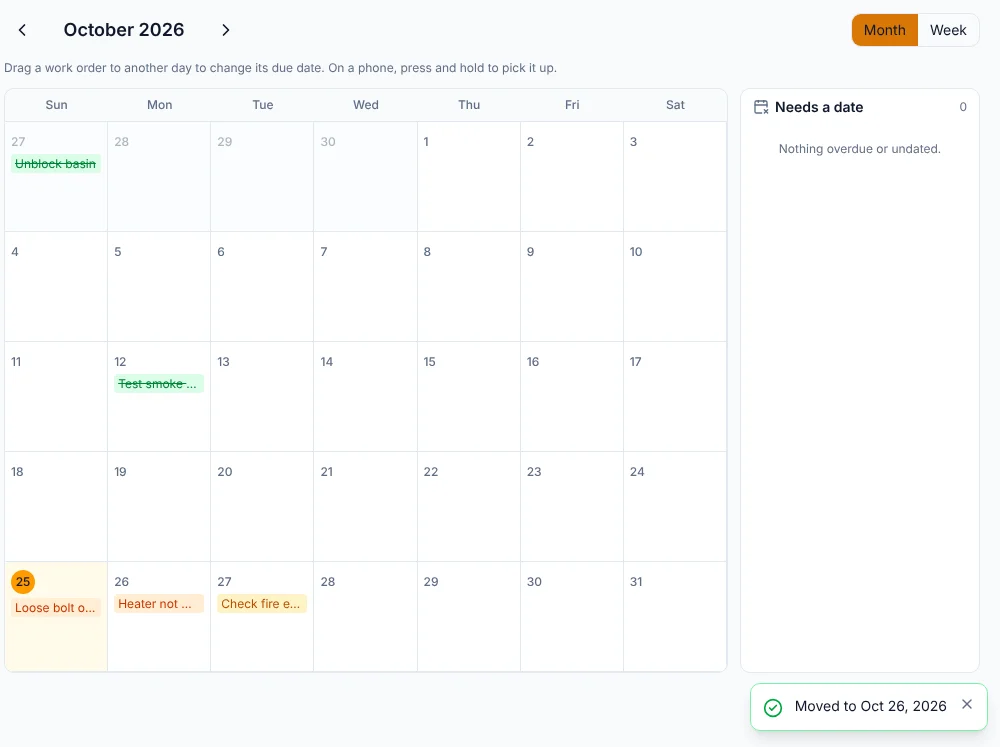
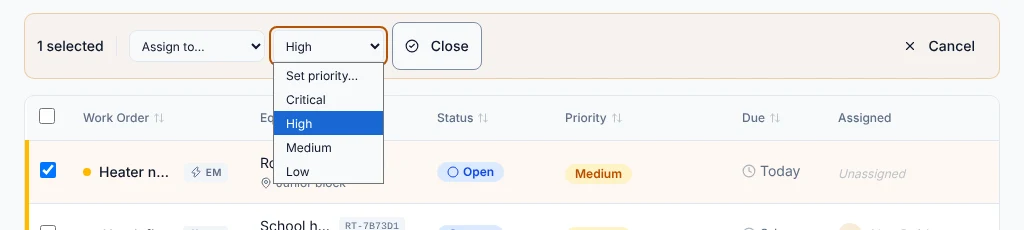
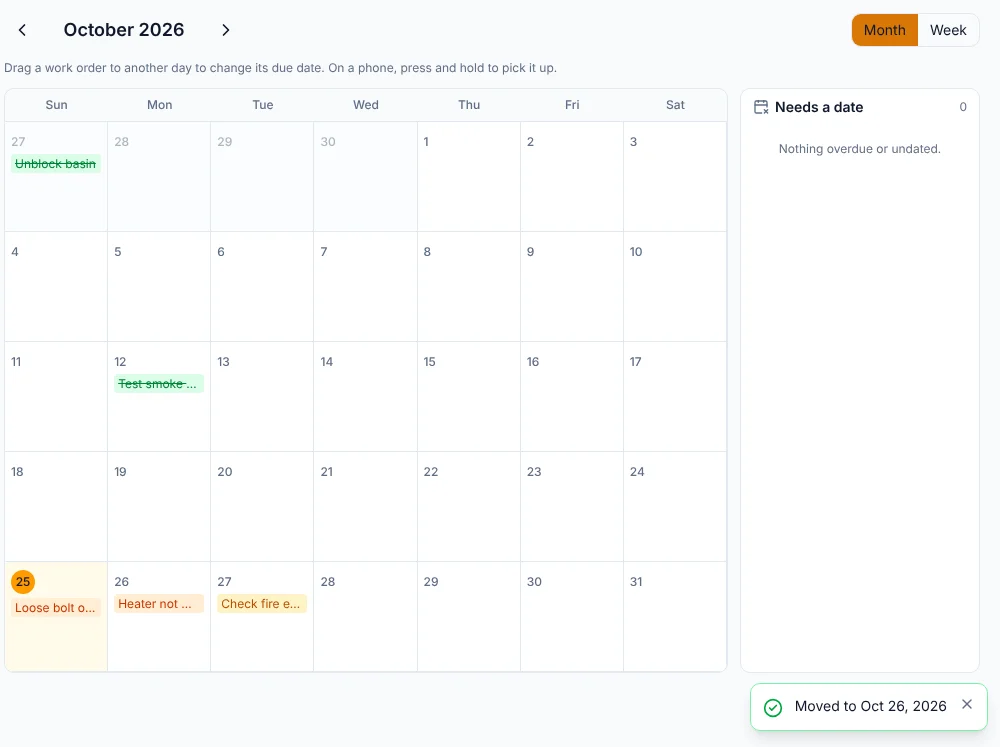
In Work Orders, tick the job and use Set priority, then tick it again and use Assign to. To pick a day, drag the job to a day on the Calendar.
The groundskeeper fixes it and marks it done
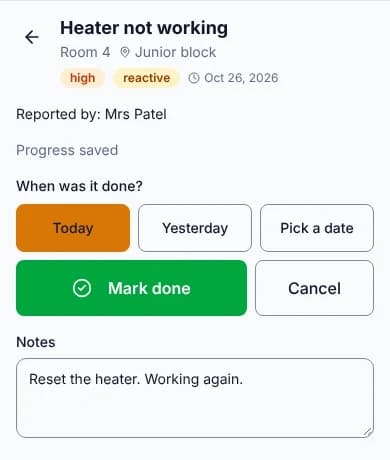
On their phone, the job is under My WOs. They open it, press Start Work Order, add a note, then press Complete Work Order, check when it was done (Today is already picked) and press Mark done.
It’s on the room’s record
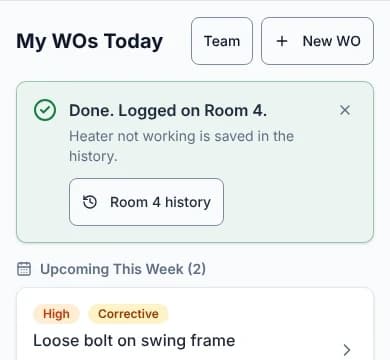
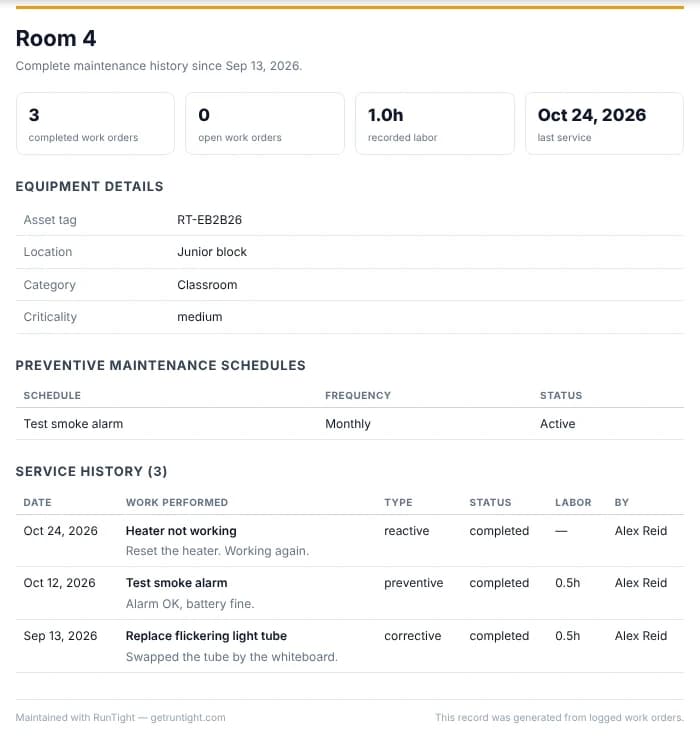
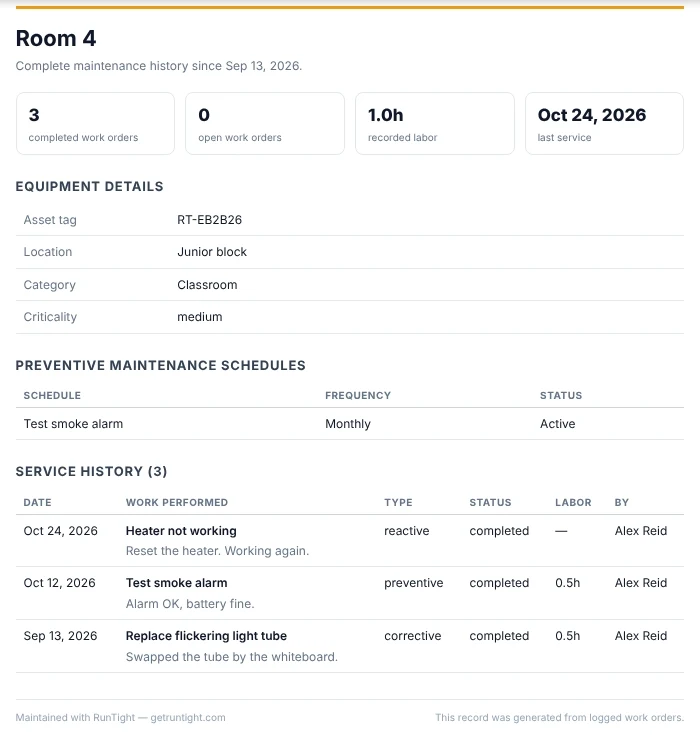
Open the room under Equipment and press History Report. It opens your print window with a list of every job on it, staff reports and recurring checks together, with completion dates and notes.
Recurring checks
For checks that come round on a schedule, like smoke alarms or fire extinguishers, use PM Schedules and set the check to repeat every so many days. Each one turns into a job when it’s due, and lands on the same room record.
Choosing which months a check runs, for example skipping the summer holidays, is on the Team plan. On the Free plan a check repeats on its interval.
Try it with your school
Free for up to 5 people, so you and your groundskeeper cost nothing. See plans.